Publishing a page doesn’t mean Google will automatically add it to search results. Your website might load perfectly, appear in an XML sitemap, and pass every basic technical check, yet some pages may remain unindexed. Website indexing depends on more than submitting URLs. Google needs to discover the page, access its content, process it, and decide whether to include it in its search index.
This guide explains how website indexing works, how to check your pages in Google Search Console, and what to do when you encounter statuses such as Crawled – currently not indexed or Discovered – currently not indexed.
Website indexing is the process through which Google analyzes web pages and may add them to its searchable index. To improve indexing, make important pages accessible, use accurate XML sitemaps, strengthen internal links, and resolve technical or content issues identified in Google Search Console. Indexing is never guaranteed, even when a page meets Google’s technical requirements and you request indexing manually.
What Is Website Indexing?
Website indexing is the process of analyzing and storing information about web pages so they can appear in search results.
Google Search operates through three main stages:
- Crawling: Googlebot discovers a URL and requests its content.
- Indexing: Google analyzes the page, its content, metadata, and relationship to other pages, then determines whether to include it in the index.
- Serving search results: Google retrieves relevant indexed content when someone searches.
A page can be crawled without being indexed. Likewise, an indexed page might receive little or no organic traffic because indexing and ranking are separate processes.
This distinction is important when troubleshooting. A missing page does not always indicate a broken sitemap or technical configuration.
Google explains these stages in its official guide to how Search works.
How to Check If Your Website Is Indexed by Google
Google Search Console is the most reliable starting point for checking the indexing status of URLs you own.
Check the Page Indexing Report
Open Google Search Console and navigate to Indexing → Pages.
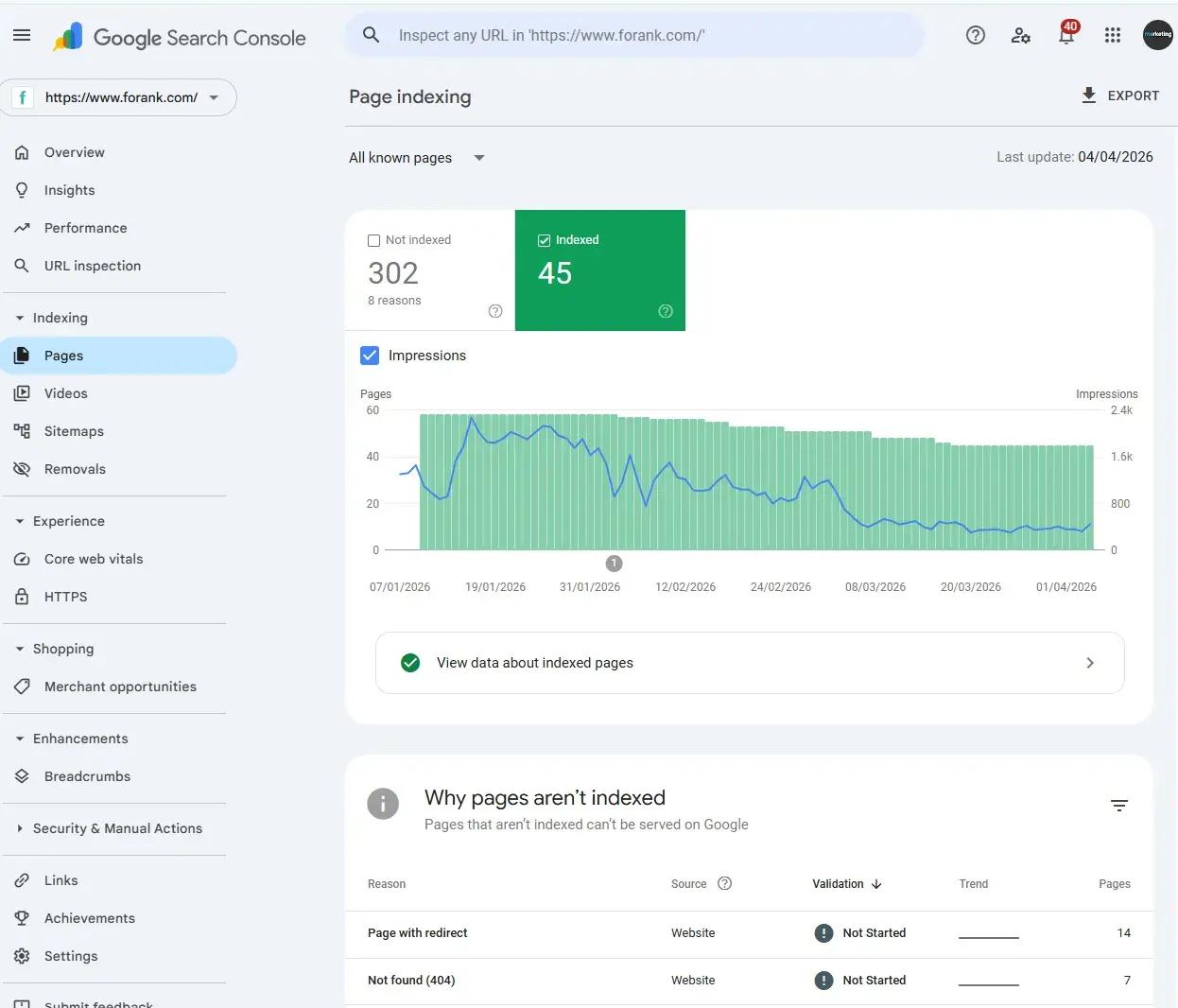
The report separates URLs into Indexed and Not indexed groups and explains why Google hasn’t added pages to its index.
Look beyond the overall numbers. A site may have hundreds of excluded URLs that are intentionally redirected, duplicated, or marked noindex.
Focus on important URLs that should appear in Google Search, such as articles, product pages, category landing pages, and service pages.
Inspect an Individual URL
Use the URL Inspection tool at the top of Search Console.
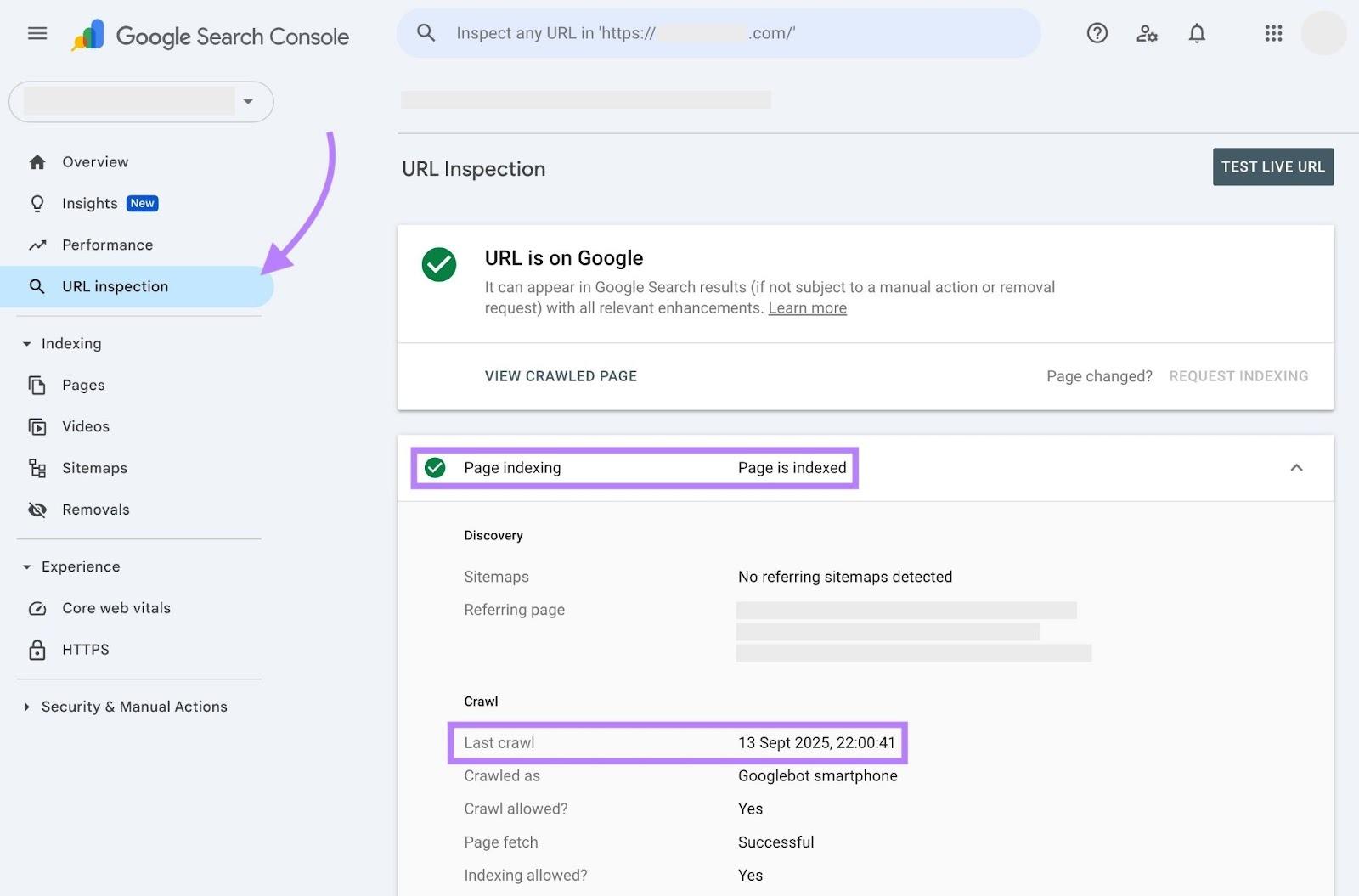
Enter the complete address of the page you want to investigate. The report can provide information about:
- The URL’s current indexing status in Google’s records.
- The last recorded crawl and whether crawling was allowed.
- Whether indexing was blocked by a directive.
- The user-declared and Google-selected canonical URLs.
- How Google discovered the page, when that information is available.
Select Test Live URL to inspect the page’s current accessibility and rendering.
A successful live test does not mean Google has indexed the page or will index it. The test checks technical conditions, not every factor involved in Google’s indexing decision.
You can also search Google using the site: operator as a quick supplementary check. However, search operators do not provide a complete inventory of indexed URLs, so use Search Console for detailed diagnosis.
How to Get Your Website Indexed by Google
There is no single setting that forces website indexing. The goal is to make your important pages easy to discover, technically accessible, and useful enough to warrant inclusion.
1. Make Sure Googlebot Can Access Your Pages
Start with the basics.
A normal indexable web page should be publicly accessible, return an HTTP 200 success response, and contain content Google can process.
Check for accidental restrictions such as a robots.txt disallow rule, a noindex directive, login requirements, or security systems that block legitimate Googlebot requests.
The distinction between robots.txt and noindex is especially important.
A robots.txt disallow rule prevents Googlebot from crawling the affected URL. A noindex directive tells Google not to include a page in search results when Google can access and process that directive.
Blocking a page through robots.txt is not a reliable way to enforce noindex, because Google may be unable to see the noindex instruction.
2. Submit an Accurate XML Sitemap
An XML sitemap helps Google discover important URLs, especially on new websites and sites with large content collections.
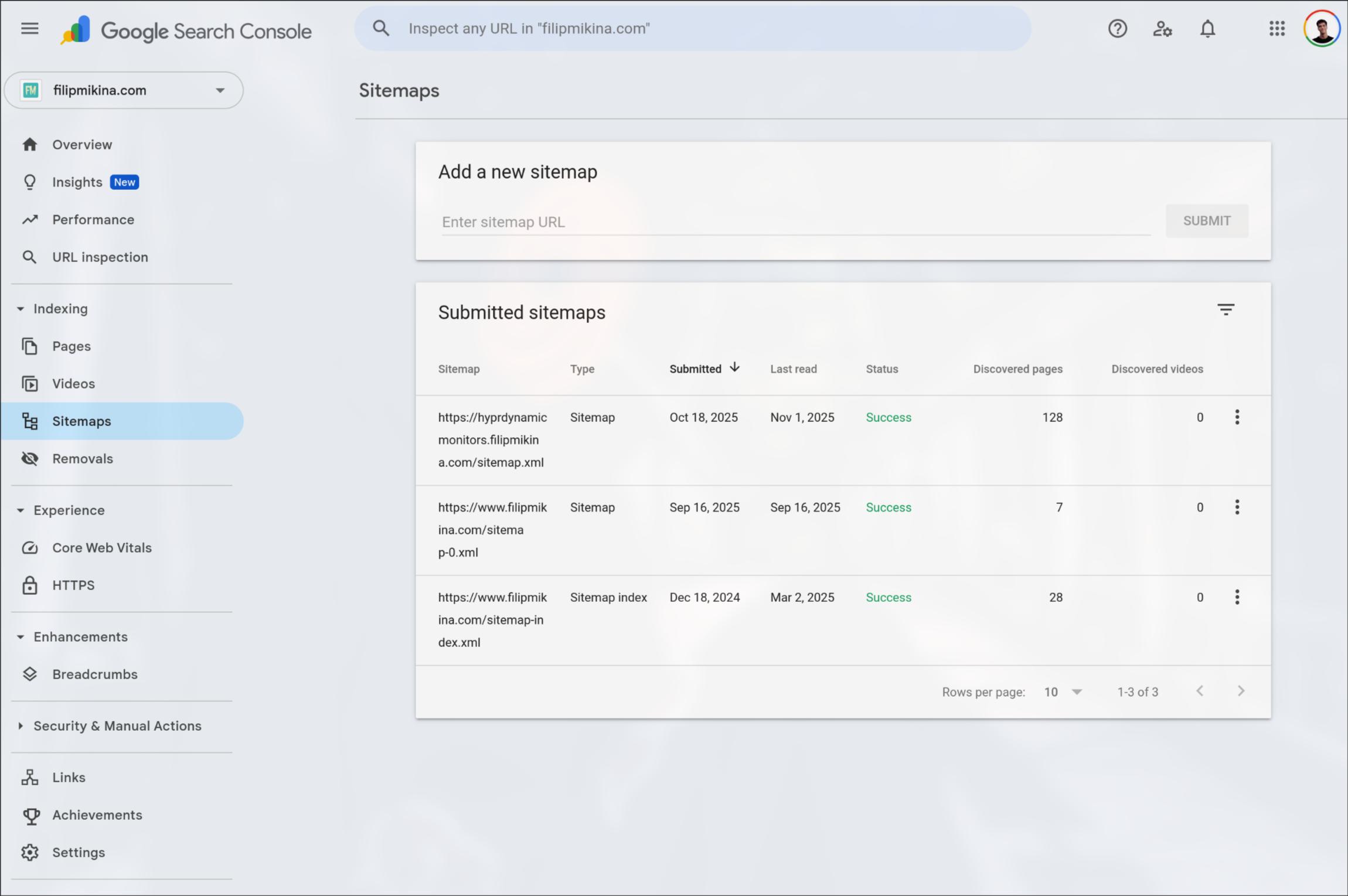
WordPress can generate a sitemap automatically. SEO plugins such as Yoast SEO may provide a sitemap index at an address similar to:
https://example.com/sitemap_index.xml
WordPress also has a native sitemap system, commonly accessible at /wp-sitemap.xml.
Check the actual sitemap address used by your installation rather than assuming that every website uses /sitemap.xml.
Open Google Search Console, navigate to Indexing → Sitemaps, and submit the appropriate sitemap address.
For effective sitemap management:
- Include canonical URLs that you want Google to index.
- Remove deleted, redirected, and intentionally noindexed URLs from your indexable sitemap wherever practical.
- Use accurate last-modified dates when significant content changes occur.
- Keep your sitemap available and valid.
Google ignores the XML sitemap fields priority and changefreq. It may use lastmod when the dates consistently reflect real, significant updates.
An XML sitemap assists discovery, but submission does not guarantee crawling, indexing, or improved rankings.
3. Strengthen Internal Linking
Internal links give search engines paths to discover content and understand relationships between pages.
An important article should not depend exclusively on an XML sitemap for discovery.
Link to relevant pages from existing articles, category hubs, navigation elements, or resource collections. Use descriptive anchor text rather than repeating generic phrases such as “click here.”
For example, an article about technical SEO can link naturally to a guide on how to increase organic traffic to your website.
The goal is not to insert dozens of links into every article. It is to build useful connections between closely related subjects.
Pages without meaningful incoming internal links are often called orphan pages. Reviewing them is a useful part of an indexing audit.
4. Review Content Quality and Overlapping Pages
Technical accessibility is necessary, but it isn’t enough.
Google may crawl a page and still decide not to index it. Content that adds little useful information, substantially duplicates another URL, or fails to meet a clear search need may struggle to earn a place in the index.
Compare the affected page with other content on your own website before rewriting it.
For example, if you publish three articles covering the same question with nearly identical answers, consider whether they would be more useful as one comprehensive resource.
When updating older pages, prioritize factual corrections, missing information, clearer examples, and material that directly answers the searcher’s question.
Our guide to fixing old website content for quality UX covers additional ways to improve existing material without unnecessary rewrites.
Adding more words doesn’t automatically improve content. A concise article that solves a specific problem can be more useful than a long article repeating generic advice.
5. Check Canonical URLs and Duplicate Content
A canonical URL identifies the preferred version of a page among duplicate or very similar URLs.
For example, a website may make substantially identical content available through tracking parameters, alternate URL structures, or different versions of the same page.
Google considers several signals when determining which URL should represent that content in search results, including canonical annotations, redirects, sitemap inclusion, and other signals.
A canonical tag is a strong signal, not an absolute command.
In Search Console, compare the user-declared canonical with the Google-selected canonical. If they differ, examine whether the other URL genuinely represents the same content.
Avoid automatically forcing every duplicate URL into the index. In many cases, Google’s decision to index one preferred version is correct.
6. Make Content Accessible on Mobile Devices
Google primarily uses the mobile version of website content for indexing.
Important text, links, images, and navigation should therefore be available and functional on mobile devices.
A desktop page might display the full article while its mobile version hides essential sections or fails to load content generated through JavaScript.
Use URL Inspection to examine the rendered page when you suspect that Google cannot access important content.
Also check server errors, excessively slow responses, and JavaScript failures. These problems can interfere with crawling or processing, even when the page appears normal in your own browser.
Performance improvements support accessibility and user experience, but no single page-speed score guarantees indexing.
7. Request Indexing When Appropriate
After publishing or substantially improving an important URL, you can submit a request through Google Search Console.
Open URL Inspection, enter the URL, check the live version if necessary, and select Request Indexing when the option is available.
This asks Google to consider crawling the URL. It does not guarantee that the page will enter the index.
Repeated requests for the same unchanged URL do not make Google crawl it faster.
For large collections of pages, accurate sitemaps and strong internal discovery are more practical than repeatedly submitting individual URLs.
Common Google Search Console Indexing Issues
A Not indexed status does not automatically mean something is broken. Each status requires a different response.
Crawled – Currently Not Indexed
This status means Google crawled the page but did not include it in the index at the time reflected by the report.
Google does not provide a single universal explanation for this status, and the page may be indexed later.
Start by checking whether the URL is still accessible, whether its content is visible to Google, and whether another page covers substantially the same subject.
Review the article’s usefulness, originality, internal links, and relationship to other pages on the website.
If the page already provides substantial value and no technical problems are visible, waiting may be appropriate.
Google explicitly states that URLs in this status do not need to be resubmitted for crawling simply because they have this classification.
Discovered – Currently Not Indexed
According to the report, Google knows about the URL but has not yet crawled it.
Google’s documentation explains that it may postpone crawling because of anticipated load or resource considerations.
This status does not prove the page has poor content, since Google may not have fetched it yet.
Check whether the URL appears in your sitemap, receives relevant internal links, and is hosted on a server that responds reliably.
For a newly discovered page, allow time for Google to schedule crawling.
If many important URLs remain in this state for an extended period, investigate wider discovery, crawl capacity, and server availability problems.
URL Is Unknown to Google
This message appears in URL Inspection when Google does not have recognized indexing information for the requested URL.
First, confirm that you entered the correct canonical address, including the appropriate protocol, hostname, and URL path.
Next, confirm the page is published, publicly accessible, included in an appropriate sitemap, and linked from relevant content.
If the page is important and technically eligible, use URL Inspection to request indexing.
Do not treat the absence of a URL from the indexing report as proof that Google has rejected the content.
Duplicate, Google Chose Different Canonical Than User
This status means Google selected another URL as the preferred version instead of the canonical URL you declared.
Inspect both addresses and compare their main content.
If Google selected the correct preferred page, you may not need to take corrective action.
If Google selected an unintended version, review your canonical annotations, redirects, sitemap URLs, and internal links for inconsistent signals.
A canonical declaration alone cannot guarantee Google’s selection.
Excluded by Noindex or Blocked by Robots.txt
A noindex status usually means Google encountered an instruction not to index the page.
Confirm whether this is intentional. Privacy pages, internal search results, or certain utility pages may not need to appear in Google Search.
For a valuable article that should be indexed, remove any unintended noindex directive and confirm Googlebot can access the page.
A robots.txt block is different: it restricts crawling. Correct accidental disallow rules before expecting Googlebot to process the content.
Server Errors, Soft 404s, and Redirect Problems
A server error can prevent Googlebot from obtaining a usable page response. Investigate recurring 5xx errors, access failures, and unstable hosting behavior.
A soft 404 occurs when Google interprets a page as missing or effectively empty even though the server may return a success response.
Check whether the page contains its intended main content and whether Google can render it.
Use a proper 404 status for a genuinely removed page with no suitable replacement. If content has moved permanently to a relevant new URL, use an appropriate permanent redirect.
Not every 404 needs to be fixed, and not every deleted URL should redirect to the homepage.
How to Fix Crawled – Currently Not Indexed Pages
When many articles share this status, prioritize the pages that have a genuine reason to exist.
Begin with important articles targeting identifiable search queries, useful evergreen resources, and pages closely related to the website’s main topics.
For each candidate, follow this workflow.
Step 1: Inspect the URL
Use Google Search Console to check the recorded crawl information and any reported indexing restrictions.
Run a live test if you need to inspect the current version. Remember that a successful test cannot predict Google’s final indexing decision.
Step 2: Compare Similar Content
Search your website for articles targeting the same query or answering nearly identical questions.
If multiple pages compete for the same purpose, consider consolidating overlapping material. Preserve useful information and use redirects when a replaced URL has a suitable new destination.
Step 3: Improve the Actual Answer
Review the introduction, headings, examples, and factual accuracy.
Does the page answer the main question quickly? Does it provide useful detail beyond what readers could find in a short definition?
Add missing steps, current documentation, or practical examples where they genuinely help.
Avoid rewriting good content just to change the wording.
Step 4: Strengthen Internal Discovery
Add relevant internal links from established pages that readers are likely to visit.
A useful resource should connect naturally to the rest of the website rather than exist as an isolated URL.
Step 5: Monitor the Result
After substantial changes, make sure the page is crawlable and its sitemap information is accurate.
You can request a recrawl once if appropriate, but avoid repeatedly submitting an unchanged URL.
Review the URL’s status later through Search Console. Indexing reports can lag behind changes, so don’t expect immediate results.
How Long Does Website Indexing Take?
There is no guaranteed indexing schedule.
Google’s recrawling guidance says crawling can take anywhere from a few days to a few weeks. Actual indexing depends on additional factors, and some pages may never be indexed.
A newly published page on an established, frequently crawled website may be discovered relatively quickly. A page on a new domain or a weakly connected section of a website may take considerably longer.
The important distinction is between Google discovering a URL, crawling it, and deciding to index it.
Do not treat seven days, 14 days, or any other fixed period as an official deadline.
Instead, use Search Console to determine which stage the page has reached before deciding what to change.
Can Third-Party Indexing Services Guarantee Results?
Some third-party services, including IndexRusher and Rapid URL Indexer, promote services related to URL indexing and discovery.
However, no independent service can guarantee that Google will accept an ordinary web page into its search index.
Google decides which pages to crawl and index through its own systems. Paying for a submission service does not override Google’s technical requirements, canonical selection, or indexing decisions.
Evaluate such services carefully, and distinguish their marketing claims from confirmed indexing outcomes.
Google’s Search Console tools and sitemap submission do not require payment.
Should Every Page on Your Website Be Indexed?
No. A healthy website does not need every discovered URL to appear in Google Search.
Duplicate URLs, redirected pages, removed content, and intentionally noindexed pages can legitimately appear in the Not indexed report.
A useful approach is to divide URLs into two groups: pages that should attract search traffic and pages that serve another purpose.
Focus indexing work on original articles, important category resources, products, services, and other pages that answer real search queries.
For the remaining URLs, verify that their excluded status is intentional rather than trying to force every page into the index.
Conclusion
Website indexing requires accessible pages, reliable discovery, consistent technical signals, and content worth including in search results.
Google Search Console helps identify where that process has stopped, but not every unindexed page has a technical error you can fix.
The most productive approach is to prioritize valuable URLs, investigate their actual indexing status, make evidence-based improvements, and monitor Google’s response without expecting guaranteed results.
How do I get my website indexed by Google?
Make sure your important pages are publicly accessible, return a valid HTTP response, and do not contain unintended noindex directives.
Submit an accurate XML sitemap through Google Search Console, add relevant internal links, and request indexing when appropriate. None of these steps guarantees inclusion in Google’s index.
Why is my page crawled but not indexed?
Crawled – currently not indexed means Google accessed the page but has not included it in its index.
Check for overlapping content, technical restrictions, canonical issues, and opportunities to improve the page’s usefulness. However, this status alone does not identify a specific problem.
What is the difference between Discovered and Crawled – currently not indexed?
Discovered – currently not indexed means Google knows about the URL but has not yet crawled it according to Search Console.
Crawled – currently not indexed means Google already fetched the page but did not index it. The two statuses represent different stages of the indexing process.
How long does Google take to index a website?
Google does not guarantee a specific indexing deadline. Crawling may take several days to several weeks, and indexing can take longer or may not happen at all.
Use Google Search Console to monitor discovery, crawling, and indexing instead of relying on a fixed number of days.
Does submitting a sitemap guarantee Google indexing?
No. An XML sitemap helps Google discover important URLs, but it does not force Google to crawl or index them.
Manual indexing requests also provide no guarantee. Google still evaluates the page’s technical accessibility, canonical signals, and suitability for indexing.

Andrej Fedek is the creator and one-person owner of three blogs: InterCool Studio, CareersMomentum, and Bettegi. As an experienced marketer, he is driven by turning leads into customers with White Hat SEO techniques. Besides being a boss, he is a real team player with a great sense of equality.