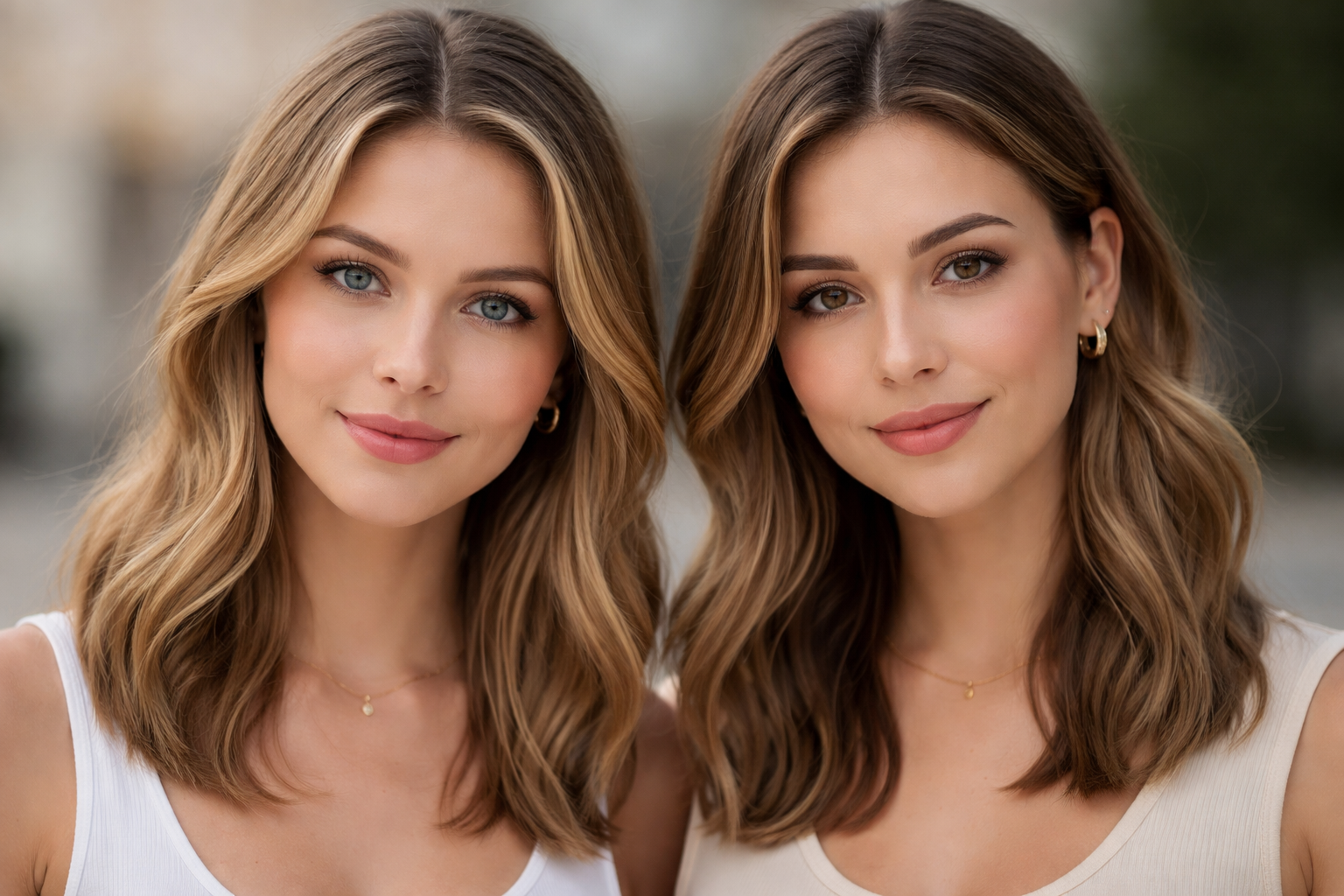
Finding a good AI face swap tool is easy. Finding one that is fast, usable, and actually worth trying for free is much harder.
Many tools promise clean results, but once you open them, you run into signup walls, watermarks, weak exports, or locked video features.
AI face swap tools use automated image and video editing to place one face onto another in photos, clips, or GIFs. In this guide, you will find the best AI face swap tools for free online use, video swaps, GIFs, and quick browser-based editing, with a clear look at which options are easiest to try and which are better for stronger results.
Table of Contents
Best AI face swap tools for photos
Remaker AI
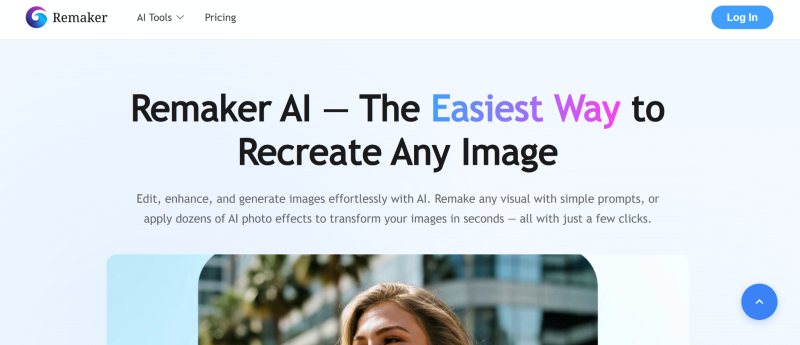
Remaker AI is a fast, browser-based option for clean photo swaps without a complicated workflow. It’s built around an “upload → swap → download” flow, so you can test results in minutes.
Pricing: Usually offered as a free/limited trial plus either credit-based payments or a subscription plan for more exports and higher quality. The paid tiers typically remove restrictions like low-resolution exports, daily limits, or watermarks (if enabled in your region/version).
Key features: Photo face swap, quick processing, simple UI, and export options that scale with your plan. Some versions also include extra AI utilities beyond swapping, which is useful if you want an all-in-one toolbox.
Quality notes: Remaker AI looks best when your source face is sharp and evenly lit, and your target image has a similar lighting direction. It can struggle with extreme angles, heavy motion blur, or low-light targets that require stronger edge control during blending.
Best for: Quick photo swaps, thumbnails, simple edits, and testing different targets fast. Use it when you want speed and convenience more than total control.
Pros: Easy to use, fast results, good “first pass” swaps.
Cons: Realism can drop in tricky lighting, and the best output usually sits behind higher-tier exports.
Fotor
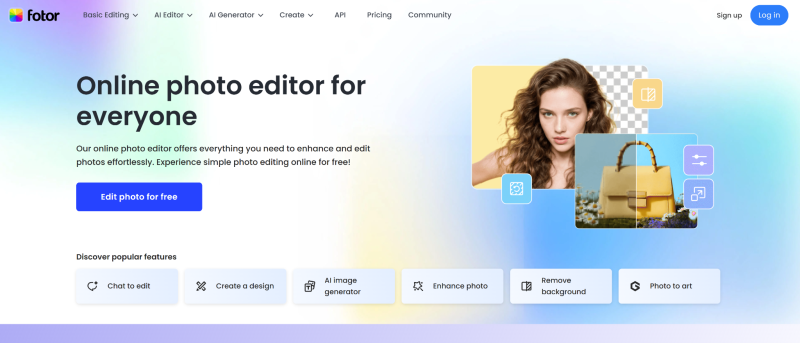
Fotor is a beginner-friendly editor with AI features, so it’s useful when you want a quick face swap without learning a “pro” workflow. It’s mainly designed for simple, fast results, not maximum realism.
Pricing: Fotor typically runs on a free plan plus a Pro subscription (monthly/annual) that unlocks more AI credits or removes limits. The paid tier usually improves export quality and removes restrictions such as low-resolution downloads or feature gating.
Key features: Browser-based AI editor, quick photo effects, and a simple workflow that’s easy to repeat across many images. Depending on the current version, it can also include general AI tools such as enhancements, background work, and other one-click edits that pair well with swaps.
Quality notes: Fotor face swaps look best when your source photo is sharp and evenly lit, and the target face is clear with minimal blur. If the output looks “plastic,” it’s usually because the tool smooths skin texture, so choose cleaner targets and avoid heavy compression.
Best for: Fast photo swaps, thumbnails, casual edits, and content where speed matters more than perfect skin texture. Use it when you want something simple that most readers can replicate in seconds.
Pros: Very easy UI, quick results, lots of extra AI editing utilities in one place.
Cons: Can over-smooth faces, and the most useful export/AI limits are usually behind Pro.
Pixlr

Pixlr is a lightweight, browser-based editor that’s great when you want quick edits and a simple workflow without installing anything. It’s not a “face swap specialist” in the same way some dedicated tools are, but it’s useful if you want fast experiments and easy touch-ups around the swap.
Pricing: Pixlr usually offers a free tier plus Plus/Premium-style subscriptions that remove ads, unlock more features, and expand export limits. Paid plans are mainly about smoother workflow, higher-quality exports, and fewer restrictions.
Key features: Online editor (Pixlr X/E), quick AI-style effects, background tools, layering, and fast adjustments that help you clean seams after a swap. It’s especially handy when you want to fix color, contrast, or edges without leaving your browser.
Quality notes: If you’re using Pixlr as part of a face swap workflow, treat it as the “finishing” tool rather than the engine. You’ll get the best-looking results by generating the swap elsewhere, then using Pixlr to match lighting, soften harsh edges, and align texture.
Best for: Quick browser editing, fixing seams, light retouching, and making a near-miss swap look publishable. Use it when you want speed and convenience more than one-click realism.
Pros: Very fast, easy UI, good for touch-ups and cleanup, no install needed.
Cons: Not a dedicated face swap system, so realism depends on your generator and how well you finish the image.
FaceSwapOnline
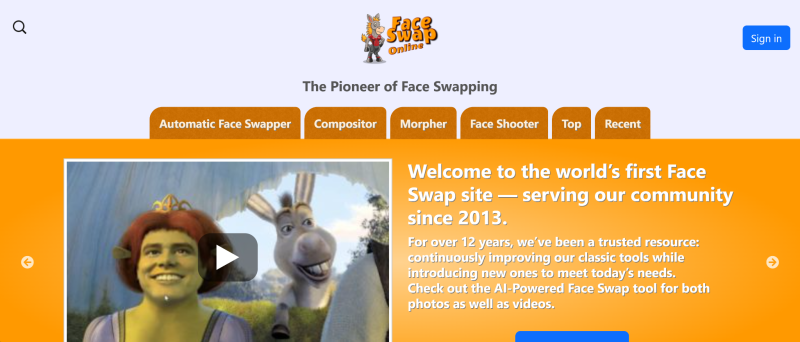
FaceSwapOnline is a simple, web-based option that focuses on quick face swapping without a heavy editor interface. It’s built for speed and convenience, so you can test a swap in minutes and move on.
Pricing: FaceSwapOnline typically offers a free/limited tier with paid upgrades (subscription or credits) for higher resolution, more exports, and fewer restrictions. The paid tier usually matters if you want clean downloads, faster processing, and consistent access during busy hours.
Key features: Straightforward upload flow, quick processing, and an easy way to generate basic swaps without advanced settings. It’s designed for casual use rather than advanced control, such as manual masking or pro-level blending.
Quality notes: You’ll get the best results when the target face is large, well-lit, and facing forward. It tends to struggle with extreme angles, strong shadows, hair covering the face, and low-resolution targets.
Best for: Fast photo swaps, memes, simple thumbnails, and quick experiments. Use it when you want a lightweight “click and go” tool.
Pros: Very easy workflow, fast results, no complex setup.
Cons: Limited control, realism drops off in tricky lighting/angles, and higher-quality exports are usually reserved for paid plans.
DeepSwap
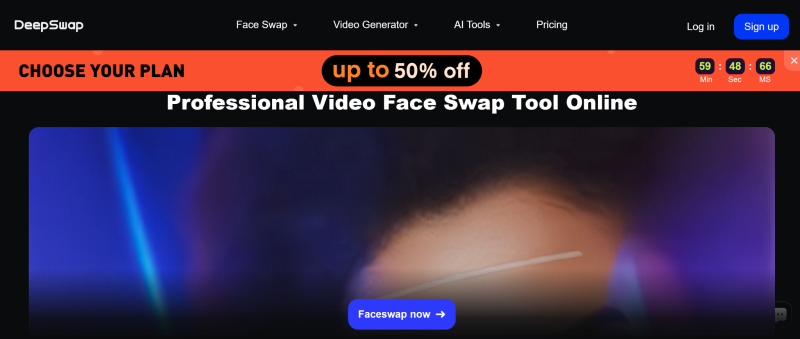
DeepSwap is one of the better-known names in the AI face-swapping tools space because it supports both photo and short-video workflows. It’s built for a simple “upload → swap → export” flow, so you can get usable results without learning a complex editor.
Pricing: DeepSwap typically runs on a subscription plan (with different tiers) rather than a pure pay-per-image model. The paid tiers usually unlock higher-resolution exports, longer video limits, faster processing, and more daily/monthly usage.
Key features: Photo and video face swaps (short clips), and a streamlined UI that’s easy for beginners. It’s often used for quick content because you can test multiple targets fast and keep the workflow consistent.
Quality notes: DeepSwap looks best when your target footage is clean, stable, and not heavily compressed. It can struggle with fast cuts, shaky camera movement, low light, and close-up talking scenes where mouth movement exposes artifacts.
Best for: Fast face swaps for photos, short videos, and social content where speed matters. Use it when you want a single tool that covers both photo and video without a heavy setup.
Pros: Simple workflow, supports video, good for quick testing across multiple targets.
Cons: Video realism depends heavily on clip quality, and longer clips or higher-quality exports are usually locked behind higher tiers.
Best AI face swap tools for video
DeepSwap
DeepSwap is one of the more video-focused AI face swap tools because it’s designed around uploading a clip and exporting a swapped result without local setup. It’s a good fit when you want a simple workflow that your readers can repeat quickly. We wrote about this tool in the previous section.
Reface
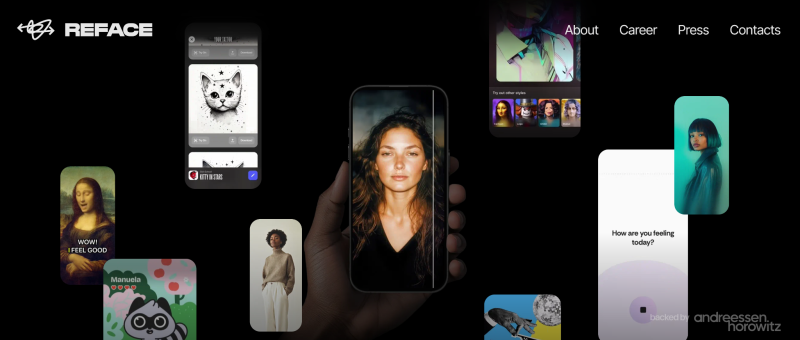
Reface is one of the most recognized apps for short, template-driven video face swaps. It’s built for speed and consistency, not for long custom footage or cinematic realism.
Pricing: Reface typically offers a free/limited version, with subscription tiers for more templates, better export options, and fewer restrictions. The paid tier usually matters if you want higher-quality exports and regular usage.
Video features: Template swaps, quick generation, and predictable results when your input face fits the template’s angle. It’s a strong option for fast, low-effort content creation.
Quality notes: Reface looks best when the template matches lighting and face angle closely. It’s less reliable for fully custom videos because templates can’t adapt to every camera movement and scene change.
Best for: Fun clips, meme content, and quick social posts. Use it when speed matters more than perfect realism.
Pros: Very easy, fast, consistent for templates.
Cons: Limited control, weaker for custom footage, and realism depends heavily on the template.
FaceMagic
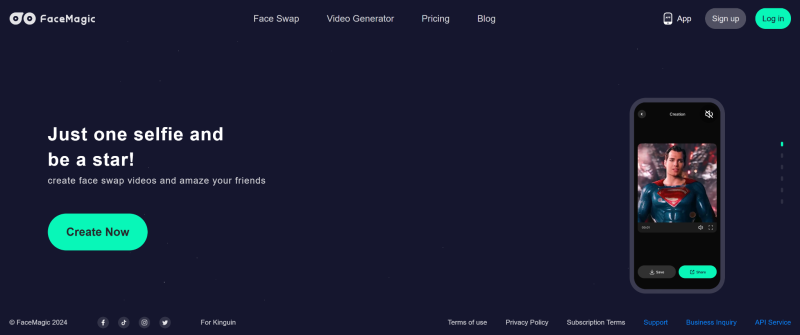
FaceMagic is a template-first face swap app that’s designed to be simple, fast, and repeatable. It’s a good pick when you want quick swaps without learning settings or workflows.
Pricing: FaceMagic typically uses free access with limits plus subscription upgrades for more content, better exports, and higher usage caps. Paid plans usually matter if you want watermark-free downloads and more options.
Video features: Template-based video swaps that are easy for beginners. It’s built for “choose template → upload face → generate,” which makes it very friendly for casual users.
Quality notes: FaceMagic performs best when the template subject is clearly visible, and the video is stable. It can break with heavy motion, fast cuts, or tricky angles where the face is partially covered.
Best for: Quick template swaps, repeatable social content, and fast tests. Use it when you want a frictionless mobile workflow.
Pros: Simple, fast, beginner-friendly.
Cons: Not ideal for custom footage; limited control; realism varies by template.
Viggle AI

Viggle AI is better described as a motion/character tool than a classic face replacement engine. It’s useful when your goal is animated, meme-style videos that emphasize movement rather than perfect face realism.
Pricing: Viggle AI typically runs on a free/limited model, with premium access for more exports, faster processing, or higher-quality output. The exact tiers change often, so you’ll want to confirm current limits before you publish pricing numbers.
Video features: Motion-driven outputs and character-style generation workflows. It can be great for viral-style clips where the movement sells the effect.
Quality notes: If you need face-accurate replacement in real footage, Viggle isn’t always the best fit. It’s strongest when viewers expect a stylized result rather than a “this looks real” swap.
Best for: Meme videos, motion-driven content, and stylized outputs. Use it when you want movement and vibe more than strict realism.
Pros: Great for motion-driven clips, fun outputs, and easy for viral content.
Cons: Not a pure video face swap tool, and realism is not the core goal.
Which AI Face Swap Tool Is Best for Different Needs?
If you only want a quick, browser-based tool, the best options are those with low friction and fast access. For most readers, Remaker AI, AIFaceSwap.io, and FaceSwapper.ai make the most sense when the goal is to test an ai face swap online free tool without wasting time on setup.
If your main priority is video, the better picks are the tools built around motion handling rather than simple image swaps. DeepSwap, PixNova, and Pica AI are stronger choices for ai face swap video, face swap ai video, and similar searches where photo-only tools are not enough.
If you care most about free access, no sign-up, and casual use, the best starting points are the simplest platforms. That is where terms like ai face swap free, face swap ai free, and ai face swap no sign up usually align best with tools such as Remaker AI, AIFaceSwap.io, and DeepSwapFace.
If you want cleaner still-image results for profile edits, memes, or social content, photo-first tools are often enough. In those cases, Pixlr and similar image-focused options may feel easier than a heavier video-first platform.
Are free AI face swap tools worth using?
Free tools are worth trying when you want to test the workflow before paying for anything. They are also useful for simple image swaps, quick jokes, casual content, and one-off experiments where perfect realism is not the goal.
The tradeoff is usually in export quality, usage limits, watermarks, or locked video features. That is why many people start with ai face swap online free tools first, then move to a paid option only if they need cleaner output or more consistent results.
Final Thoughts
The best AI face swap tool is not always the one with the longest feature list. In practice, the right pick depends on whether you want fast free access, better video support, easier browser use, or more polished results for content creation.
If your goal is simple and low-friction, start with the free browser tools first. If you need better ai face swap video output, cleaner motion, or more advanced formats like GIFs, move toward the platforms built for heavier creative work.
What is AI face swap?
AI face swap is a type of automated image or video editing that replaces one person’s face with another in a photo, clip, or GIF.
Most tools try to match facial position, expression, and lighting so the result looks more natural instead of pasted on.
What is the best AI face swap tool?
The best AI face swap tool depends on what you want to do. Some tools are better for fast free photo swaps, while others are stronger for video, GIFs, or cleaner overall results.
If you care most about quick browser access, free testing, or no-sign-up use, the best choice may be different from the best tool for longer video work.
Are there any AI face swap tools online for free?
Yes, many AI face swap tools offer free online access for basic testing. Free versions are useful for quick image swaps, casual edits, and checking how a tool handles your source and target images.
The tradeoff is that free plans often come with limits such as watermarks, lower resolution, credit caps, or restricted video features.
Can I use AI face swap for video?
Yes, some AI face swap tools support video in addition to still images. The better ones stay more consistent across frames and handle movement, speech, and changes in angle more smoothly.
Shorter, cleaner clips usually produce better results than long, heavily compressed footage with fast cuts or motion blur.
Can AI face swap tools work with GIFs?
Yes, some platforms support GIF face swaps as well as photos and videos. This is useful when you want a quick looped result for memes, reactions, or lightweight social content.
GIF support is not available in every tool, so it helps to check format support before uploading files.
Do I need to sign up to use an AI face swap tool?
Not always. Some AI face swap tools let you test photo swaps without creating an account, which makes them easier to try before you commit to anything.
Other platforms require sign up before downloads, higher resolution exports, or video features become available.
Why do some AI face swap results look fake?
The most common reasons are poor lighting, low-resolution inputs, motion blur, and weak blending around areas like the jawline, mouth, and hairline.
Better source images and cleaner target footage usually improve realism more than switching tools over and over.
Are AI face swap tools safe to use?
They can be safe to use when you choose reputable platforms, avoid uploading sensitive material, and check how the service handles file retention and privacy.
It is also important to use face swap tools responsibly and avoid misleading, harmful, or non-consensual content.

Andrej Fedek is the creator and the one-person owner of two blogs: InterCool Studio and CareersMomentum. As an experienced marketer, he is driven by turning leads into customers with White Hat SEO techniques. Besides being a boss, he is a real team player with a great sense of equality.