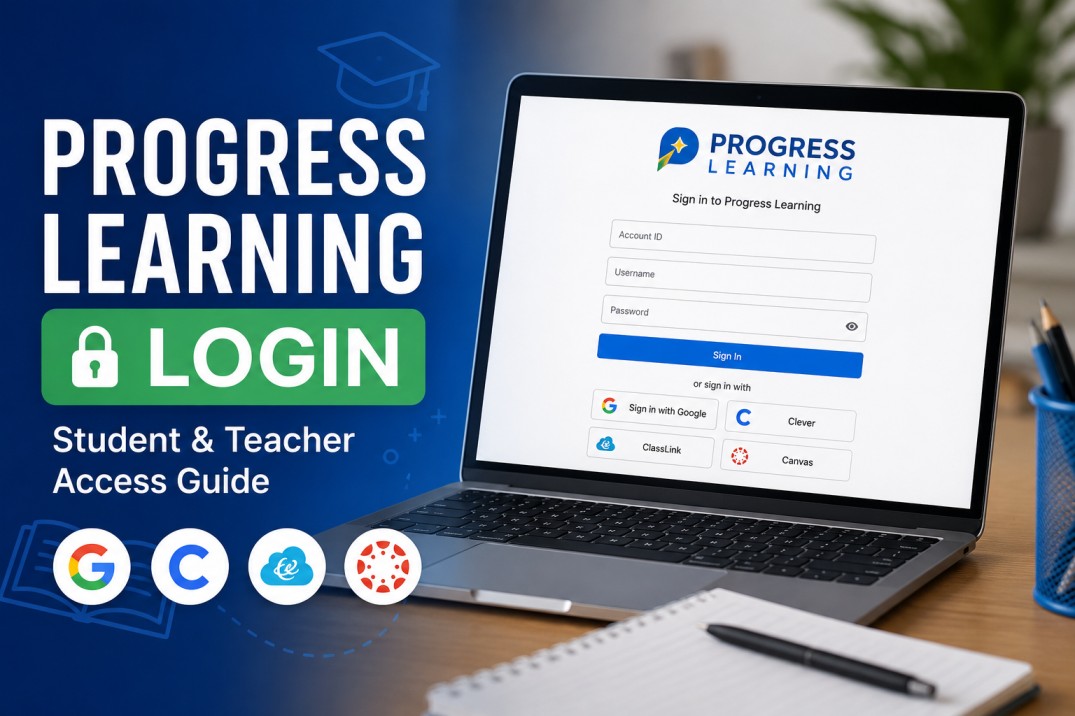
Trying to reach your Progress Learning account without clicking through several school pages? Start with the official Progress Learning login page. You can sign in manually with your school credentials or use Google, Clever, ClassLink, or Canvas when your account is connected to one of those services.
The Progress Learning login page asks for your school Account ID, username, and password. You may not need any of those if your school uses Google, Clever, ClassLink, or Canvas. In that case, open Progress Learning from the same school portal you normally use. Still locked out? The Account ID is often the problem, so check it with your teacher before resetting anything.
Go to the Progress Learning Login Page
Open the official Progress Learning sign-in page and choose the method provided by your school.
For a manual login, enter:
- Your school’s Account ID
- Your username
- Your password
- Select Sign In
The Account ID belongs to your school or district. It is not usually something you create yourself. Ask your teacher, school administrator, or the technology department if you do not know.
Progress Learning Student Login
Students can access Progress Learning in several ways.
Sign In With a Username and Password
Go to the login page and enter the Account ID, username, and password supplied by your school.
Make sure you enter the school Account ID correctly. Even with a valid username and password, the request may still fail if the wrong Account ID is used.
Sign In Through Clever or ClassLink
Some schools connect Progress Learning to their existing student portal.
In that case:
- Sign in to your school’s Clever or ClassLink portal.
- Find the Progress Learning icon.
- Select it to open your account.
You should not need a separate Progress Learning password when your account is managed through Clever or ClassLink. Students can also select the Clever or ClassLink option on the regular Progress Learning login page.
Sign In With Google
Select Sign in with Google, then choose the Google account linked to your school profile.
Google login will not work unless your school has already linked the account. Check which Google profile is open in the browser before you try again.
Progress Learning Teacher Login
Teachers use the same main login page as students.
Enter the school Account ID, username, and password if your teacher gave them to you. Some schools use Clever or ClassLink instead, so teachers may need to open Progress Learning from the district portal.
When your school uses single sign-on, start from that portal rather than the regular login page. This avoids maintaining a separate set of credentials.
Progress Learning Login Through Clever
Progress Learning supports both Clever Instant Login and Clever Secure Sync.
Instant Login lets students and staff open Progress Learning from their Clever dashboard. Secure Sync allows schools to create and update accounts using their existing roster information.
When the Progress Learning icon does not appear in Clever, the problem may be with your school’s app assignment rather than your personal login. Contact your teacher or school technology administrator instead of creating another account.
Progress Learning Login Not Working
Most login problems come from a small number of issues.
Check the Account ID
The Account ID points Progress Learning to the right school. Check the Account ID carefully. Even one wrong character can send you back to the login screen.
Use the Correct School Account
A personal Google account is a common reason Clever or ClassLink opens the wrong profile.
Log out of any personal accounts, then sign in again with the account issued by your school.
Forgot Your Password?
Use the reset link on the login page to create a new password.
Progress Learning does not email old passwords, so there is nothing to recover.
For student accounts, password changes may be handled by the school. Your teacher can tell you who needs to reset it.
Try the School Portal
Schools that use Clever, ClassLink, or Canvas often expect you to open Progress Learning from there. The regular login form may not work for those accounts.
Refresh the page once. If it still refuses to load, open it in another browser. Progress Learning runs online, so you do not need to install a student app.
Check Your Browser
Refresh the page or try another modern browser such as Chrome, Firefox, Safari, or Edge. Progress Learning runs in a web browser and does not require a separate student app.
Does Progress Learning Have an App?
There is no app to install before you start. Progress Learning works through a web browser, so students can use it on a Chromebook without installing a dedicated app. Google also explains how web apps work on Chromebooks and how to open them directly from the launcher or home screen.
Use the login page linked by your school. Avoid lookalike pages that ask for the same username and password.
What Is Progress Learning?
Schools use Progress Learning to give students practice work, quizzes, and test prep.
Your dashboard only shows the subjects and assignments your teacher has added.
What is the official Progress Learning login page?
The official Progress Learning login page is hosted at app.progresslearning.com.
Students and teachers can enter their school Account ID, username, and password or use Google, Clever, ClassLink, or Canvas when supported by their school.
What is my Progress Learning Account ID?
Your Progress Learning Account ID identifies your school or district.
It is normally provided by your teacher, school administrator, or technology department. Students do not usually create an Account ID themselves.
Can students log in to Progress Learning through Clever?
Yes. Students at schools connected to Clever can open Progress Learning directly from their Clever dashboard.
They may not need a separate Progress Learning password because their school manages access through single sign-on.
Why is my Progress Learning login not working?
Check the school Account ID, username, and password for typing errors.
If you use Google, Clever, or ClassLink, make sure you are signed in with your school-managed account. Ask your teacher or school administrator for help if the account still does not open.
Can I use Progress Learning on a Chromebook?
Yes. Progress Learning works through a web browser, so students can use it on a Chromebook, desktop computer, laptop, or supported tablet.
You need an internet connection and the login method assigned by your school.
Is Progress Learning free for students?
Student access is generally provided through a participating school or district.
Students should use the account and Progress Learning login method assigned by their school rather than creating a separate personal account.

Andrej Fedek is the creator and one-person owner of three blogs: InterCool Studio, CareersMomentum, and Bettegi. As an experienced marketer, he is driven by turning leads into customers with White Hat SEO techniques. Besides being a boss, he is a real team player with a great sense of equality.