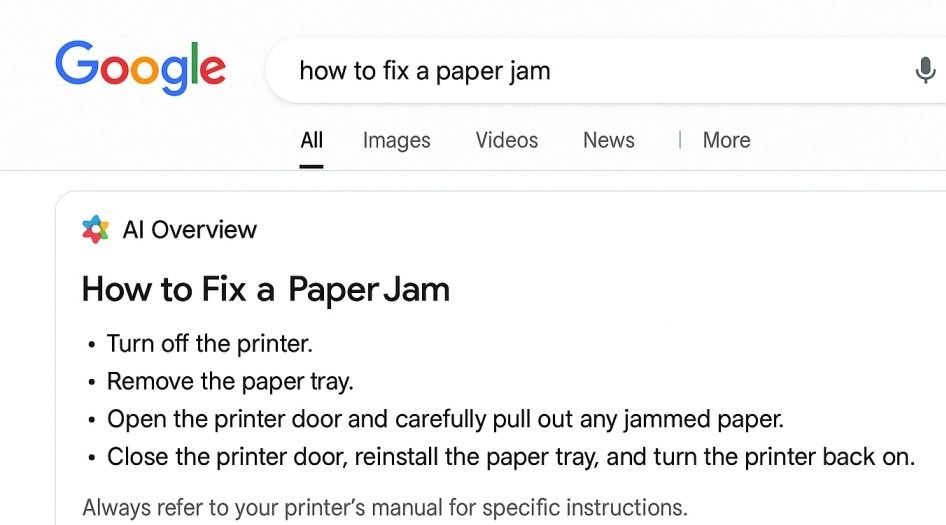
Method 1: Set Web-Only Results as Default
Web-only results display the classic list of links and typically omit the AI Overview box. This is the closest you can get to “turning off” AI Overviews without resorting to random tricks.
Chrome on Windows/MacOS
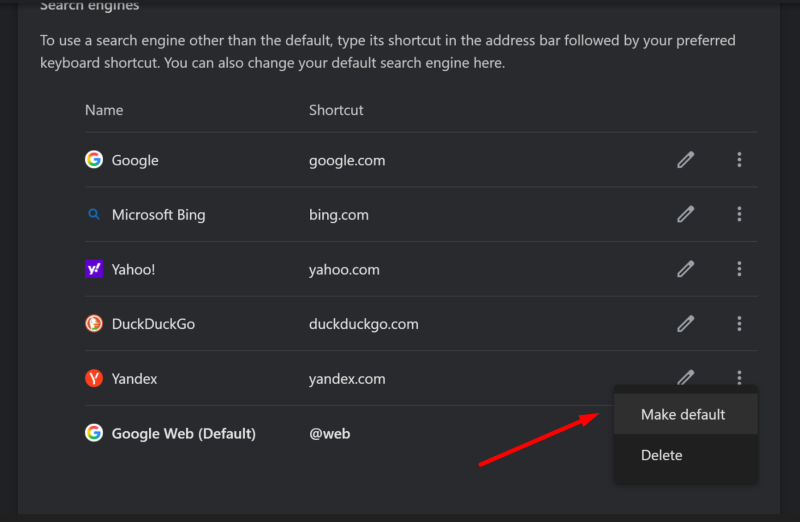
- Open Settings → Search engine → Manage search engines or paste this into your address bar: chrome://settings/searchEngines
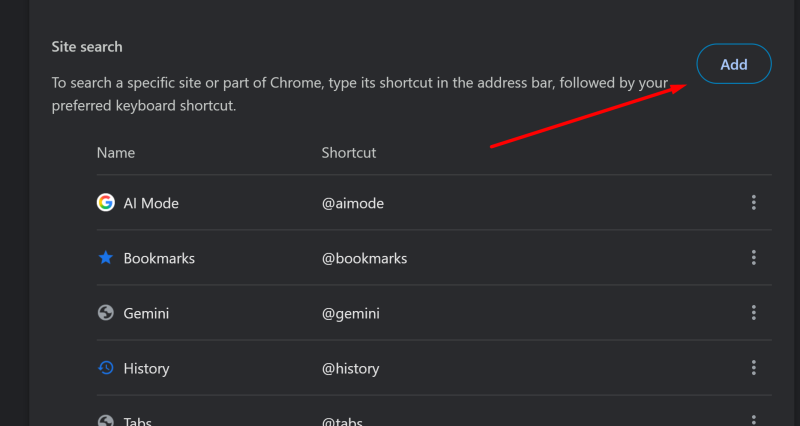
- Scroll to Site search and click Add.
-
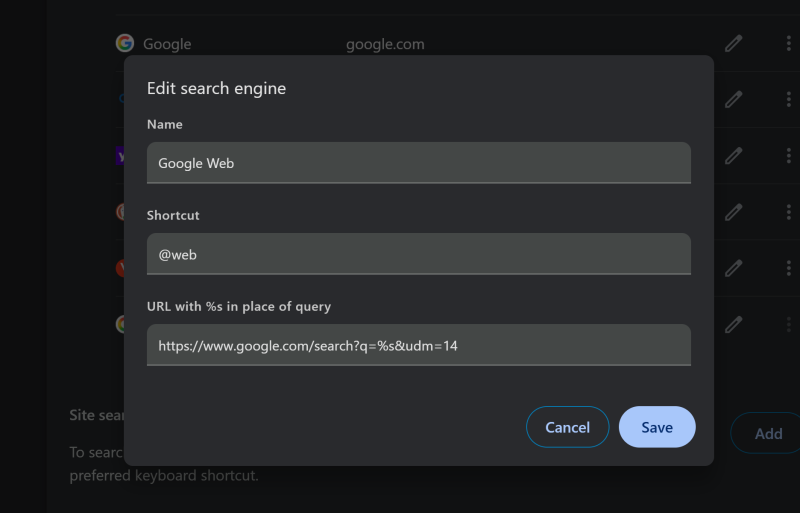
Fill the fields exactly like this:
Search engine:Google WebShortcut:@webURL:{google:baseURL}search?q=%s&udm=14
The last line is very important. If your Chrome refuses the
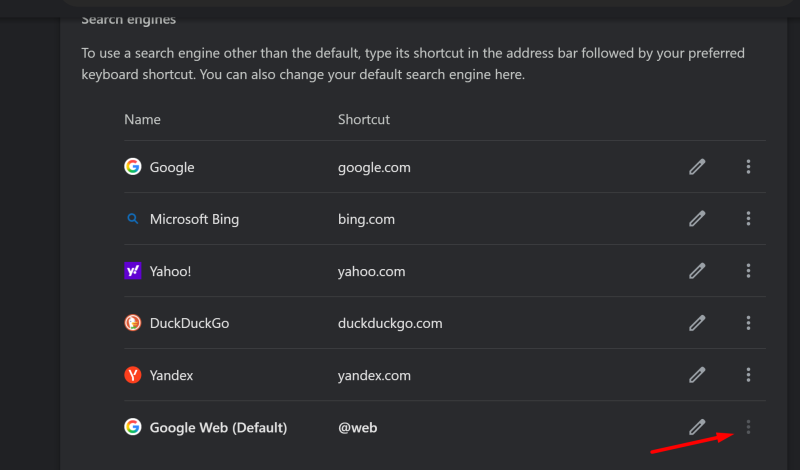
{google:baseURL}template, use this URL instead: https://www.google.com/search?q=%s&udm=14 - Now go back up to Search engines, find Google Web, click the 3-dots menu, and choose Make default.
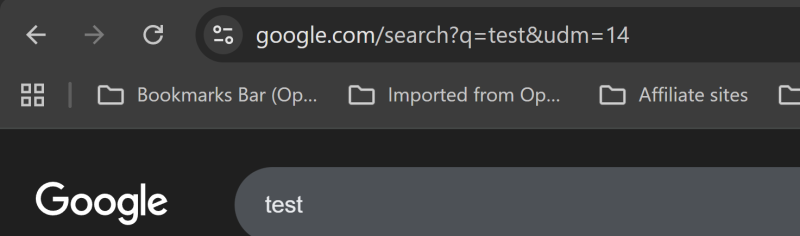
- Test it: type @web + space in the address bar, search anything, and confirm the URL includes udm=14.
Chrome on Android
Mobile Chrome usually won’t let you manually add a custom search URL like desktop does. The easiest path is to add “Google Web” as a selectable engine and then set it as default.
- Visit a trusted page that adds Google Web as a search engine option (via OpenSearch).
- Open a new tab and run one normal Google search (important step).
- Tap ⋮ (three dots) → Settings → Search engine.
- Under Recently visited, select Google Web.
- Done.
If you don’t see “Google Web,” jump to Troubleshooting.
Chrome on iPhone (iOS)
- Visit a trusted page that adds Google Web as a search engine option.
- Open a new tab and run one normal Google search.
- Tap … (menu) → Settings → Search engine.
- Under Recently visited, choose Google Web.
- Done.
Firefox on Windows / Mac
Firefox often allows adding a new search engine and setting it as default.
- Open a page that offers Google Web as an addable search engine.
- Right-click the address bar and choose Add “Google Web” (wording can vary).
- Open Settings → Search.
- Set Default Search Engine to Google Web.
- Done.
Method 2: Use “@web + Space” (no default change)
Type @web in the address bar, press Space, then type your query and hit Enter.
Method 3 (Instant): Use this Web-only Google URL (udm=14)
https://www.google.com/search?q=YOUR+QUERY&udm=14
Take back control of your search results by using the simplest browser tweaks to hide AI Overviews and get straight to the sources.
Can you turn off Google AI Overviews permanently?
There isn’t one universal “off” switch that permanently disables AI Overviews for every user and device.
The closest practical solution is to use Web-only results (often via Web mode or udm=14) or hide the AI box with a browser extension.
What is “Web” mode and why does it remove AI Overviews?
“Web” mode is a classic results view that focuses on traditional links instead of AI-generated summaries.
When your searches default to Web-only results, the AI Overview block is usually skipped or reduced because the interface prioritizes standard organic listings.
What does udm=14 mean on Google search URLs?
udm=14 is a URL parameter that many users add to Google searches to force a Web-style results view.
It’s best treated as a workaround, not a guarantee—Google can change how parameters behave, so Web mode or extensions may be needed as a backup.
Is it safe to use a “Google Web” search engine or udm=14?
It’s generally safe because your searches are still sent to Google—you’re mainly changing how results are displayed.
Just confirm the search URL clearly points to a Google domain and avoid tools that require installing unknown software.
Why do AI Overviews still appear sometimes after switching to Web-only results?
Google updates features and layouts constantly, so behavior can vary by query, device, region, and account state.
If you want the most consistent “no AI box” experience, use Web-only results as default and add a desktop extension to hide remaining AI sections.

Andrej Fedek is the creator and one-person owner of three blogs: InterCool Studio, CareersMomentum, and Bettegi. As an experienced marketer, he is driven by turning leads into customers with White Hat SEO techniques. Besides being a boss, he is a real team player with a great sense of equality.